
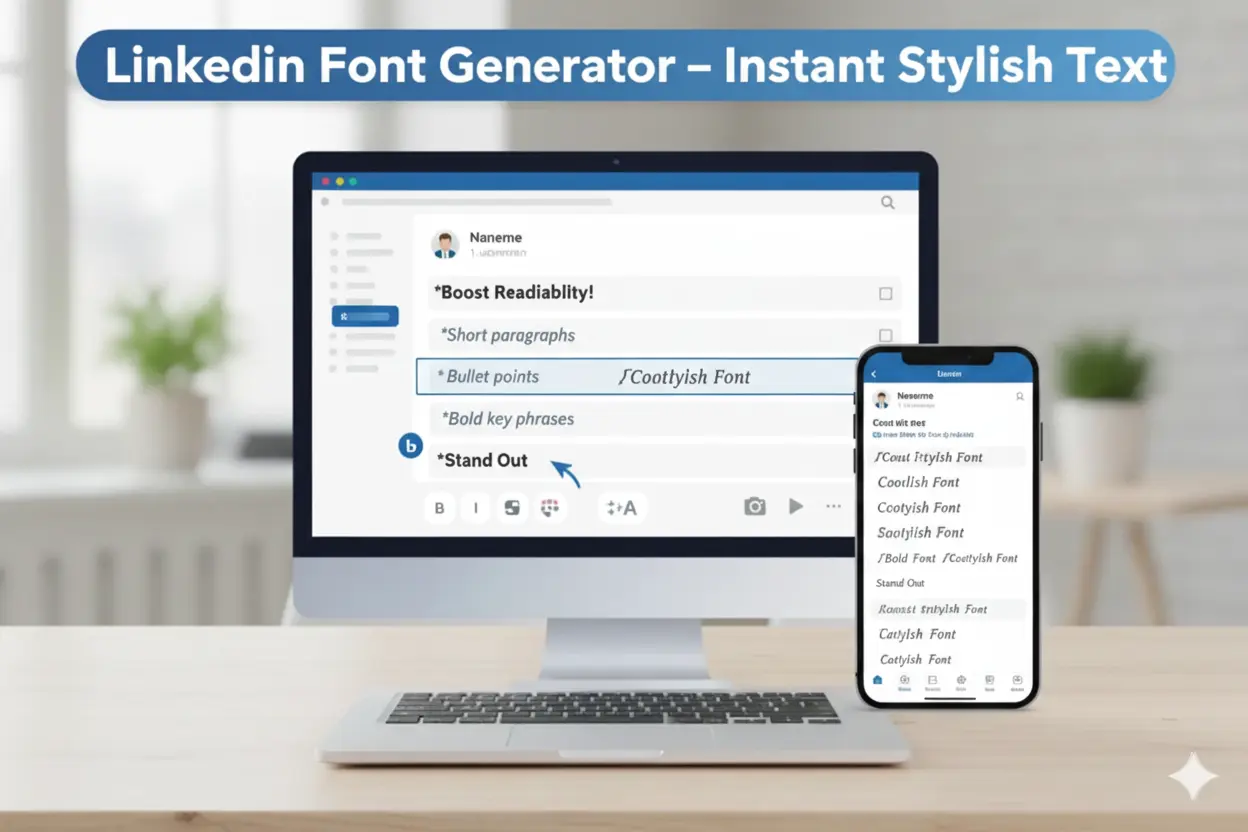
LinkedIn text often looks the same. Most profiles use the default style, so nothing stands out. A small change in font can make your headline or bio look clear and noticeable. It also helps readers scan your posts with ease.
This LinkedIn text generator lets you turn your text into bold, italic, or readable Unicode styles. The steps are simple. You type your text, choose a style, and copy it. Then you paste it on LinkedIn. The format stays the same on all devices.
Users apply this tool to highlight important points in a post. Some use it to create a strong headline. Others use it to give a clean layout to their profile summary. The generator helps users present their LinkedIn content in a structured and easy-to-read way without breaking LinkedIn’s display rules.
What Is a LinkedIn Text Generator?
A LinkedIn Text Generator is a simple online tool that changes plain text into styled Unicode text. LinkedIn does not offer bold, italic, or custom fonts, so this tool helps users add basic text styles.
You type your text, and the tool creates several styles. You pick the style you like and copy it. Then you paste it on LinkedIn. The text works in headlines, bios, posts, comments, and messages because LinkedIn displays these characters on most devices.
In simple terms, the tool helps you format your LinkedIn text in a clear and readable style without affecting LinkedIn’s display settings.
Why Use Stylish Fonts on LinkedIn?
Most posts on LinkedIn look the same. People scroll through their feed quickly. Plain text can get overlooked. A small font change helps your message stand out. Styled text shows your key points clearly. It works for your role, your offer, or an important line in a post. Used carefully, it keeps your content readable and neat.
Make Your LinkedIn Profile Stand Out
Your headline shows who you are. Your bio shows what you do. A bold or italic word helps the reader see the main point. It adds structure and makes the text easy to understand.
Get More Attention on Posts and Comments
Readers notice text that looks different. A bold phrase breaks long posts and highlights the key point. It also makes comments easier to read in busy threads. Styled words give clarity without decoration.
Improve LinkedIn Bio and Headline Visibility
Your bio and headline influence whether someone opens your profile. A styled word can highlight your skill, role, or offer. A few styled words help the reader focus. Too many can distract.
LinkedIn Text Generator – Customize Your LinkedIn Text Easily
The LinkedIn Text Generator gives you different font styles you can use on your profile or posts. You type your text in the box. The tool shows clean variations. You copy the style you want and paste it on LinkedIn.
People use this feature when they want small changes in how their text looks. Some want a bold look. Some want a softer style. Some want a clean and spaced layout. Each option uses Unicode characters, so LinkedIn accepts them without issues.
You can use these styles in your headline, bio, or main content. You can use them to mark a short idea or highlight a key point. The tool keeps your text readable. It does not change your meaning. It only gives your words a simple visual lift.
How to Use This LinkedIn Text Generator (Step-by-Step)
This LinkedIn Text Generator changes the style of your text. The steps are simple. You type your text, pick a style, and paste it on LinkedIn.
Step 1: You type your text
You write the line you want to style. You write it plainly. The generator only changes the appearance of the text.
Step 2: You choose a style
You see several styles of your text. You pick bold, italic, or clean Unicode fonts. You pick the style you want to use.
Step 3: You copy the text
You tap the style you like. The text copies immediately. This saves time and avoids mistakes.
Step 4: You paste the text on LinkedIn
You paste it in your headline, bio, post, or comment. LinkedIn displays the style on most devices. The text stays readable and clear.
Available LinkedIn Font Styles (All Options Explained)
Each font serves a purpose. Pick a style based on where you apply it.
Bold Text for LinkedIn
Bold text highlights key words. Use it to make a word or phrase stand out. It works well in headlines and main points.
Italic Text for LinkedIn
Italic text adds soft emphasis. Use it to mark a note or phrase. It keeps the line readable and smooth.
Fancy Unicode Fonts
Fancy fonts emphasize short words. Use them to make parts of a post or comment visible. They suit one or two words best.
Clean Unicode Fonts for Profiles
Clean fonts improve profile clarity. Apply them in headlines or bio sections. They give a professional look without distraction.
Best Places to Use Fancy Fonts on LinkedIn
You can use styled text in several parts of your profile. Each section has a specific use. Pick the section based on what you want readers to see first.
LinkedIn Bio Section
Your bio shows who you are. Use styled text to highlight your main skill or role. Styled words make the key points easy to notice.
LinkedIn Headline
Your headline creates the first impression. Use bold or clean fonts to show your main position or offer. A small styled word draws attention to important information.
LinkedIn Posts and Captions
Your posts share your message. Use styled text to break long lines and guide readers. A bold word helps readers find the main idea quickly.
Comments and Message Highlights
Your comments join conversations. Use a small styled word to make a point clear. Styled text makes your comment easier to read in busy threads.
Tips to Use Fancy Fonts Professionally on LinkedIn
These tips help you use styled text clearly and professionally. Keep your words easy to read.
Use Fancy Text in Small Parts
Avoid long lines in fancy fonts. Keep styled words short. Short text stays readable and professional.
Keep Your Message Clear
Pick styles that fit your tone. Use simple fonts for main points. Clear text makes your profile easy to follow.
Highlight Only Key Words
Bold or italicize important words. Highlight one or two words per line. Do not style full paragraphs.
Check the Look on Mobile
Open your profile on your phone. See how styled text appears. This makes sure the text shows correctly on all devices.
Why Our LinkedIn Text Generator Is Better
This LinkedIn Text Generator provides clear, readable text. It works on most devices. It copies text in one click and avoids formatting errors.
Provides Clean and Readable Styles
The generator shows fonts that display correctly. It offers bold, italic, and clean Unicode styles. These fonts keep your text simple and professional.
Copies Text in One Click
Tap the style you want. The tool copies the text immediately. This avoids extra steps and saves time.
Works on All Devices
Open the generator on a phone or laptop. The text displays correctly on both. This ensures your formatting stays consistent.
Requires No Login
Use the tool without creating an account. Type your text and copy it. This avoids delays and keeps the process simple.
Conclusion
Styled text makes your LinkedIn profile clear and easy to read. Highlight important words to guide readers. Use fonts that keep a professional look.
This LinkedIn Text Generator provides simple, readable styles. Type your text, pick a style, and paste it on LinkedIn. Small styled words make key points easy to notice in your headline, bio, and posts.
Using styled text improves readability and draws attention to the most important information on your profile.