
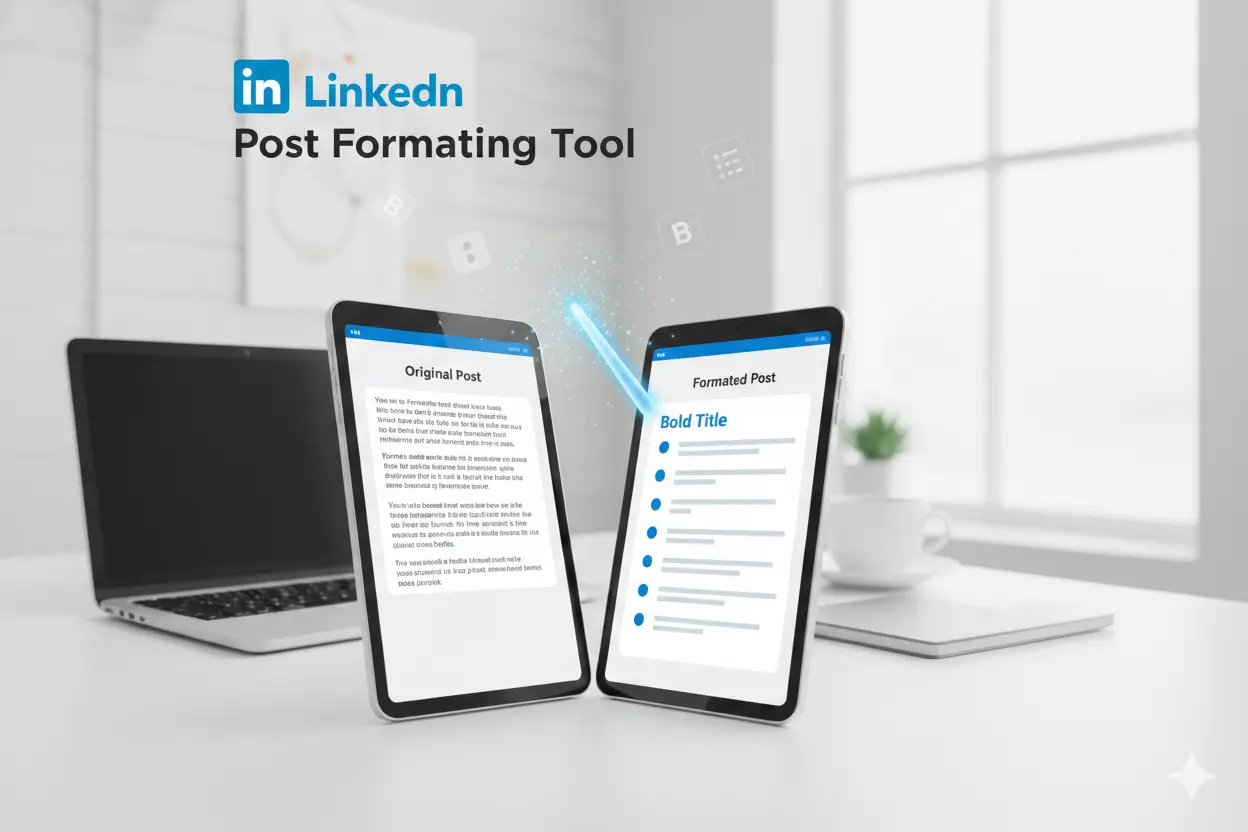
LinkedIn does not support standard bold or italic text. Standard bullets may not appear correctly. Posts often lose spacing or list structure unless you use supported characters or Unicode formatting.
A LinkedIn post text formatting generator converts plain text into characters that LinkedIn usually displays correctly. This helps preserve spacing, lists, and text styling on both desktop and mobile.
The tool works with copy and paste. You write your post, apply formatting, and paste it into LinkedIn. The tool does not require an account and does not store your text. It only formats text for posting.
What Is a LinkedIn Post Formatting Tool?
A LinkedIn post formatting tool is a simple utility. It helps structure text before publishing on LinkedIn. LinkedIn removes some standard formatting, which can make posts harder to read.
The tool converts regular text into Unicode characters. LinkedIn usually displays these characters correctly. This keeps spacing, bullet points, and styled text visible on desktop and mobile.
A LinkedInpost text formatting generator does not change the content. It only improves how the text looks. Professionals use these tools to make long posts easier to read and scan.
How This LinkedIn Post Text Formatting Generator Works
This LinkedIn post text formatting generator changes how your text looks, not what it says. You enter plain text into the tool. The tool converts your text into characters that LinkedIn usually displays correctly.
The formatting uses Unicode characters. Unicode keeps spacing, bullet points, and styled text visible in most cases on desktop and mobile.
You do not need an account or login. The tool does not store or track your text. You format the text, copy it, and paste it directly into LinkedIn.
Features of the LinkedIn Post Formatter
This LinkedIn post formatter focuses on basic formatting that works on LinkedIn without breaking the post layout.
- Text styling
Apply bold or italic text where emphasis is needed. The formatting stays visible after publishing. - Bullet points and lists
Create clean lists that do not collapse into plain text. - Line spacing
Control spacing between lines and sections for better readability. - Symbols and emojis
Add simple symbols or emojis that display correctly on LinkedIn. - Post preview
Check how the formatted text looks before posting.
These features help structure long posts and make them easier to read without changing the original message.
Who Should Use This LinkedIn Text Formatter?
This LinkedIn text formatter is useful for people who post regularly and want their content to look clean after publishing.
- Professionals
To share updates, insights, or career posts with clear spacing. - Marketers
To structure content, highlight key points, and improve post readability. - Recruiters
To format job posts so roles and requirements are easy to scan. - Founders and business owners
To present announcements and updates in a clear format.
Anyone who writes longer LinkedIn posts can use this LinkedIn content formatting tool to avoid layout issues and improve clarity.
Best Practices for Formatting LinkedIn Posts
Most users read LinkedIn posts on mobile. Small screens reduce attention. Short text improves reading.
Write short paragraphs. Each paragraph should cover one idea. Long paragraphs reduce clarity.
Use bold text for key lines. Bold text highlights important points. Too much bold reduces impact.
Use bullet points for lists. Bullet points improve scanning. Leave space before and after lists.
Use emojis with control. One emoji supports the message. Many emojis distract readers.
Common LinkedIn Formatting Problems and Fixes
Many users face the these problems.
Problem: Text loses spacing
LinkedIn joins lines after posting. This makes the post hard to read.
Fix: Add line breaks using formatted text before pasting.
Problem: Bullet points disappear
LinkedIn does not support default list formatting.
Fix: Use supported symbols or Unicode bullets.
Problem: Bold text does not show
LinkedIn ignores standard bold formatting.
Fix: Use a LinkedIn text formatter to apply supported characters.
Problem: Post looks different on mobile
LinkedIn displays content differently on small screens.
Fix: Preview the formatted text before publishing.
These fixes help maintain structure and improve readability after posting.
FAQs About LinkedIn Post Text Formatting Generator
How do I format LinkedIn posts?
You can format LinkedIn posts using a LinkedIn post text formatting generator. The tool converts plain text into a format LinkedIn supports.
Does LinkedIn allow bold text?
LinkedIn does not support native bold text. Bold text works only through formatted characters.
Is this LinkedIn text formatter safe to use?
Yes. The tool only formats text. It does not collect or store data.
Will the formatting work on mobile devices?
Yes. Formatted text displays on both desktop and mobile.
Why does LinkedIn change spacing after posting?
LinkedIn removes standard formatting. This causes spacing changes. A formatter helps keep structure.