
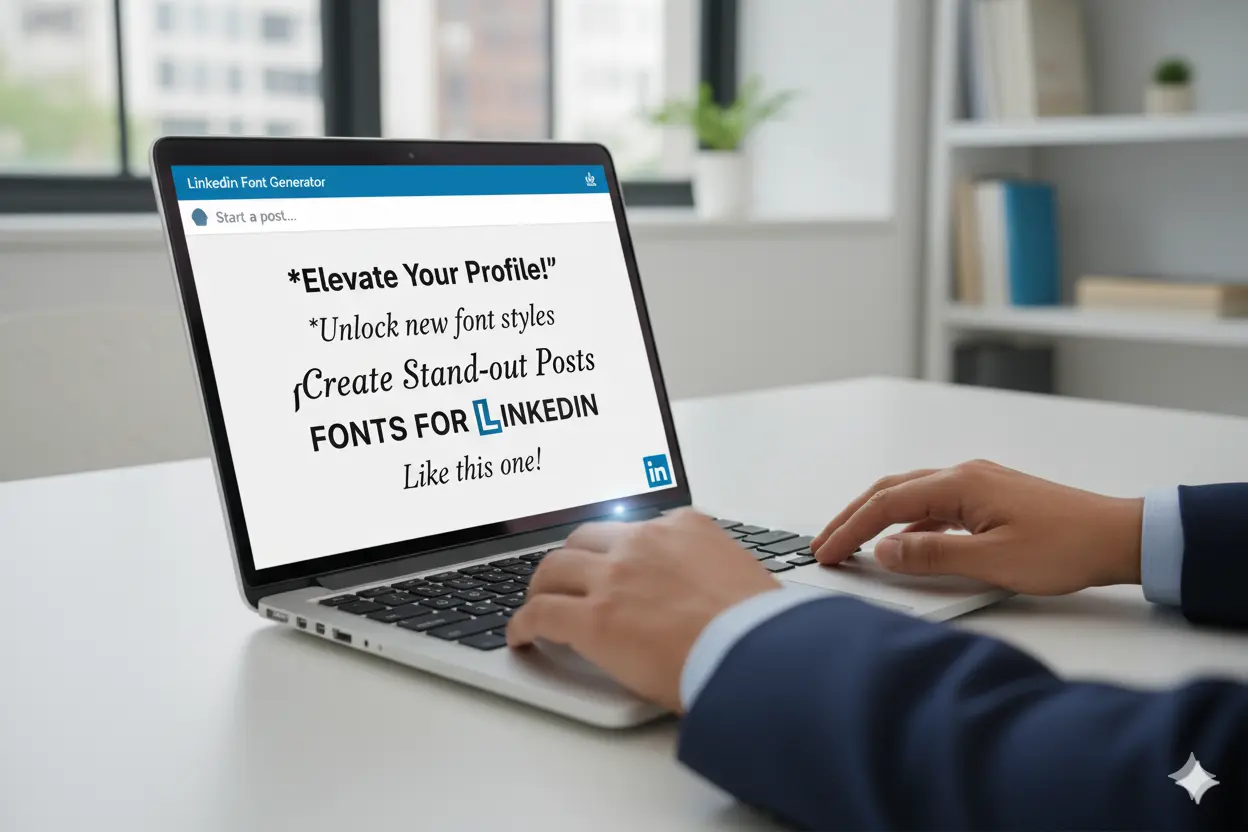
LinkedIn is a platform. Professionals share ideas, updates, and achievements. People scroll through many posts every day. If your post looks like others, people can ignore it. You can change fonts to highlight key points. A LinkedIn font generator creates bold, italic, or styled text.
You are just one click away from using Linkedin Font Generator.
Changing the font does more than add style. It highlights important points. It shows key messages clearly. It makes posts easier to read. Small changes improve readability. Bold headlines catch attention. Styled job titles improve readability.
This guide explains how to change fonts on LinkedIn posts. You will explore different font styles. You will see tools that make formatting simple. By the end, you will know how to make your posts and profile more engaging.
Why Use a LinkedIn Font Generator?
LinkedIn shows many posts every day. Most posts look the same. People can ignore posts that do not stand out. A LinkedIn font generator helps you highlight key points with styled text.
Styled fonts show key points. Bold text emphasizes important words. Italic text highlights ideas. Readers notice clear posts. Bold text improves readability. Italic text highlights key points.
You can use fonts in your profile too. Headlines, job titles, and descriptions look cleaner. Applying styled fonts makes your profile more organized.
Font generators are easy to use. You type text, pick a style, and copy it to LinkedIn. This saves time and keeps posts consistent.
LinkedIn supports the characters from these tools.
Step-by-Step Guide: How to Change Fonts on LinkedIn Posts
You can change fonts on LinkedIn posts. A font generator makes this easy.
- Open a Font Generator.
Pick a reliable online tool. Most tools are free. - Type Your Text.
Write the words you want to style. Use them for a LinkedIn post or headline. - Select a Font Style.
Choose bold, italic, or another style. Check how the text appears. - Copy the Text.
Select the styled text. Copy it carefully. - Paste on LinkedIn.
Go to LinkedIn. Paste the text in a post, comment, or profile section. - Check the Formatting.
Preview the post. Make sure readers can read it on desktop and mobile. - Publish Your Post.
Share the post when it looks correct. Styled text can make key points easier to notice.
Using a font generator takes a few minutes. You do not need design skills. It helps your posts look clean, professional, and readable.
Tips to Make Your LinkedIn Posts Stand Out
You can make LinkedIn posts clear and noticeable. Follow these steps.
- Use Bold or Italic Text.
Highlight key words. Readers notice important points. - Write Short Sentences.
Keep sentences simple. Short sentences help readers understand your post. - Use Bullet Points or Lists.
Organize ideas with lists. Lists help readers scan content fast. - Add Headlines or Subheadings.
Break content into sections. Headlines guide readers through your post. - Apply Fonts Carefully.
Use bold or italic for key phrases. Avoid too many styles. Too many styles distract readers. - Check Your Post.
Preview posts on desktop and mobile. Make sure readers can read your content. - Encourage Engagement.
Ask a question or add a call to action. Engagement helps more connections and followers notice your post.
Clear formatting and styled fonts make posts professional and easy to read.
Conclusion
A LinkedIn font generator improves your posts and profile. You can use it quickly and easily.
You can highlight key points with bold text. You can highlight key points with italic text. You can organize information with lists. You can organize information with headlines. You can make sentences short. You can make sentences clear.
These small changes improve readability. They make posts look professional. They make posts easier to read. They make posts easier to understand.
Using a font generator does not require design skills. You type text. You select a style. You paste it on LinkedIn. This saves time. This keeps posts consistent.
Follow these tips to make posts more engaging. Styled fonts with clear structure can improve the visibility of your posts.