
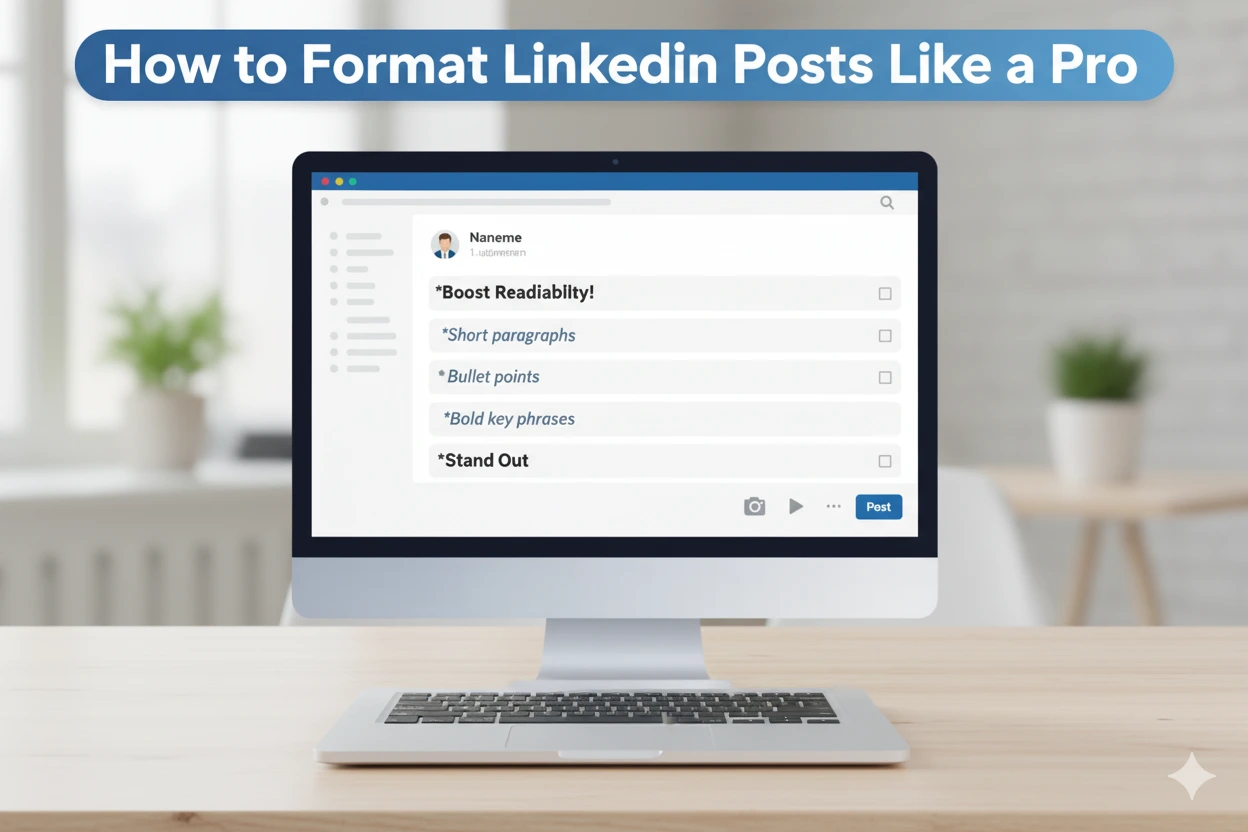
Most LinkedIn posts fail not because of weak ideas, but because people do not read them. Long paragraphs, no spacing, and poor flow make posts heavy. Readers scroll quickly and skip over them.
Clean and well-spaced text changes this. When you break your content into short lines and highlight key points, people stop and read. While managing LinkedIn content for clients, I notice that minor changes in formatting make posts clearer and more engaging.
Formatting is simple once you know what to do. Tools like LinkedIn Text Formatter by AIM IT Solution make it even easier. You can add bold, italic, and clean styles in seconds. These tweaks make your post professional and clear without clutter.
Why Formatting Matters on LinkedIn
People do not skip LinkedIn posts because the idea is weak. They skip posts that feel heavy at first glance.
Most users scroll quickly. They decide within seconds if they want to read a post. If the text is packed, uses long paragraphs, or is confusing, they move on. When a post has clear spacing and short lines, people naturally slow down and read.
I notice this often while managing LinkedIn content for clients. Two posts with the same message can perform very differently. The post with better formatting always gets more views and reactions. This happens because it is easier to read and scan.
Good formatting also helps readers follow your flow. They do not have to search for the main point. Everything feels clear and structured.
In short:
- If a post looks simple and organized, people pay attention.
- If it looks crowded, they skip it.
Basic LinkedIn Post Formatting
Before you add bold or italic text, get the basics right. Posts perform well when readers can read them easily. Good formatting starts with spacing, short sentences, and clear flow from start to end.
LinkedIn Post Structure
A clear structure helps readers follow your message without effort. Divide your post into small parts:
- Start with a short hook
- Use 1–2 lines to explain the main point
- Add clear points or examples
- End with a simple closing line or question
Long blocks of text do not work on LinkedIn. Short sentences do. When each line carries one thought, readers stay longer and understand your message faster.
LinkedIn Spacing and Line Breaks
Spacing makes a post easier to read. Break each idea into a new line. Do not group everything into one paragraph.
A clean post should have:
- One idea per line
- Blank space between sections
- No paragraphs longer than three lines
Spacing creates a natural pause. It helps readers go through your post without getting tired. Most high-engagement posts use this simple spacing technique.
Advanced LinkedIn Text Formatting
Use short sentences and spacing first. Then, apply bold or italics to important points. This makes the post clear and simple to read.
LinkedIn does not allow bold or italic text options directly. Tools like the LinkedIn Text Formatter tool solve this problem. You type your text, choose the style, and paste it into your post. The text looks clean and readable on any device.
How to Bold Text on LinkedIn
Use bold text for points that you want readers to see first. For example:
- Key points or takeaways
- Important numbers or stats
- Actionable tips
How to do it:
- Open the formatting tool
- Type your text
- Choose “Bold”
- Copy and paste it into LinkedIn
Tip: Do not bold everything. Only highlight the most important lines. Too much bold text reduces its effect.
How to Italicize Text on LinkedIn
Italic text is subtle. Use it for side notes, clarifications, or soft emphasis.
Steps:
- Type your text in the tool
- Choose “Italic”
- Copy and paste it into LinkedIn
Keep italics short. They work best for a few words or one sentence.
LinkedIn Font Styling Tools
You do not need fancy fonts or complicated apps. The goal is to make your post readable. A good tool should let you:
- Add bold
- Add italic
- Keep spacing clean
The LinkedIn Text Formatter by AIM IT Solution does all this. Avoid decorative fonts. They reduce readability and engagement.
Best Practices for Formatting LinkedIn Posts
Good formatting helps people read your post. It keeps readers focused. A clean post looks professional.
Keep Paragraphs Short
Long paragraphs confuse readers. Break your text into 1–3 lines. Short paragraphs make the post easy to scan. Readers understand your points faster.
Use Line Breaks
Line breaks separate ideas. They make your post organized. Start a new line for each idea.
Example:
- Write one idea per line
- Keep each point short
- Avoid combining multiple ideas
Without line breaks, readers skip your post.
Highlight Key Points
Use bold or italics for important points. Highlight numbers, tips, or main ideas. Do not overuse bold or italics. Too much makes the post hard to read.
Use Simple Tools
You can format your text using easy tools. LinkedIn Text Formatter by AIM IT Solution works well. Type your text, apply bold or italic, and paste it into LinkedIn. Avoid decorative fonts. They reduce readability.
Start With a Strong Hook
Begin with a simple, clear line. This hook encourages readers to continue through your post. Well-formatted posts hold attention and get better engagement.
Common Mistakes to Avoid in LinkedIn Formatting
Small formatting errors can make people skip your post. Avoid these mistakes to keep your posts clear and professional.
Writing Long Paragraphs
Long paragraphs are hard to read. Readers often skip them. Keep paragraphs short. One to three lines work best.
Overusing Bold or Italics
Use bold or italics only for key points. Highlight numbers, tips, or main ideas. Overusing them makes the post harder to read.
Using Fancy Fonts
Decorative fonts make posts harder to read. They also look unprofessional. Use simple fonts only.
Ignoring Line Breaks
Line breaks separate ideas and keep the post organized. Start a new line for each point. Without breaks, readers may skip your content.
Weak Hooks
The first line should grab attention. Start with a short and clear hook. It encourages readers to continue reading.
Example of a Well-Formatted LinkedIn Post
Seeing an example helps you understand formatting. Here is a simple post you can model:
Hook: Want more engagement on LinkedIn?
Paragraph 1: Many posts fail because long paragraphs confuse readers. Crowded text makes people scroll past.
Paragraph 2: Write your text in short lines. Use bold for key points and italics for side notes. Line breaks make the post easier to read.
Paragraph 3: Tools like LinkedIn Text Formatter by AIM IT Solution make formatting simple. Type your text, apply bold or italic, and paste it into LinkedIn.
Closing: Try this format in your next post. It makes your text clear and keeps readers engaged until the end.