
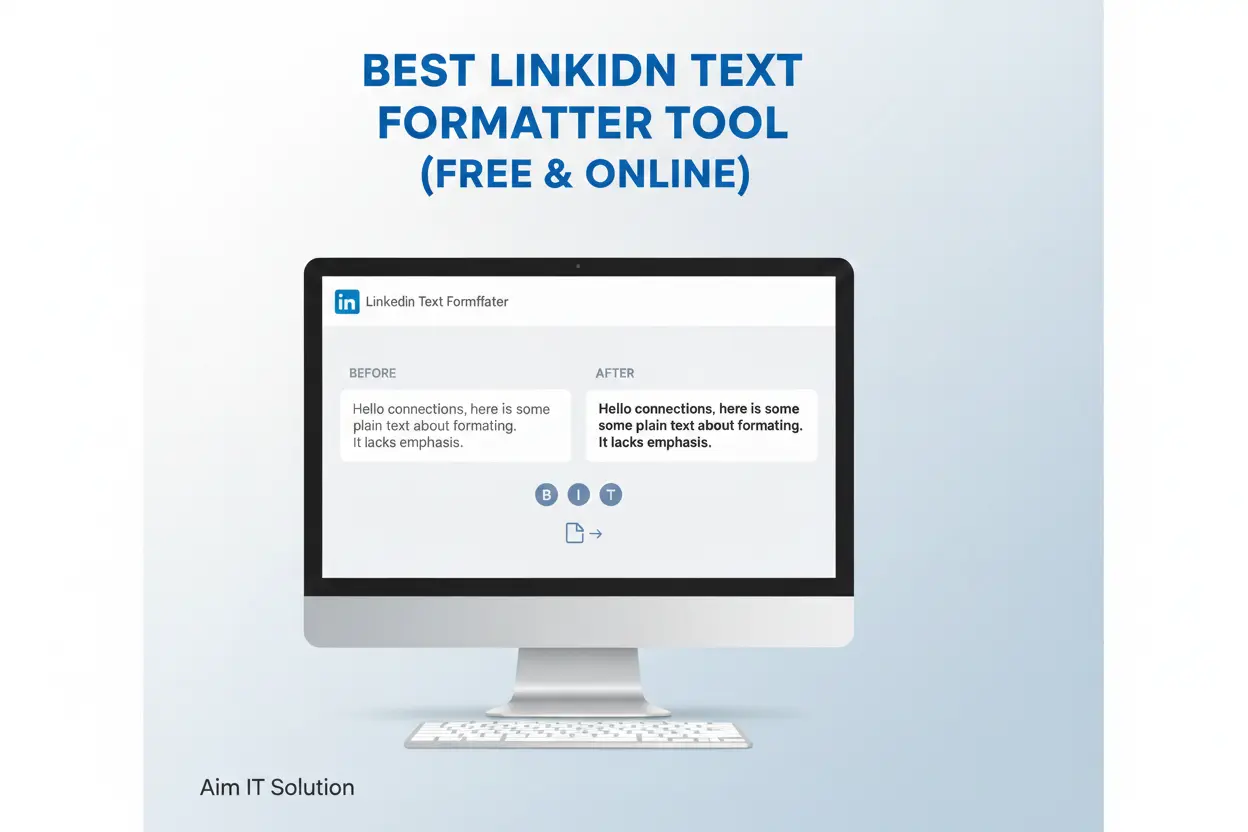
LinkedIn posts have limited formatting options. Users cannot directly apply bold, italic, or custom fonts in regular posts.
The Best LinkedIn Text Formatter by Aim IT Solution formats LinkedIn text using Unicode characters that LinkedIn supports. It lets you highlight key lines, organize content, and make posts easier to read.
This LinkedIn text formatter tool from Aim IT Solution works entirely online. The tool does not require a login, signup, or payment. You paste your text, choose a style, and copy it. Then paste it directly into LinkedIn.
Where You Can Use This Tool
The tool works in multiple LinkedIn sections:
- LinkedIn posts
- LinkedIn headlines
- LinkedIn bio and About section
- Comments and featured content
Who Can Use This Tool
The Aim IT Solution LinkedIn text formatter is useful for:
- Professionals posting updates or articles
- Marketers creating engaging content
- Freelancers or job seekers improving their profile
- Recruiters sharing job updates or announcements
What Is a LinkedIn Text Formatter?
A LinkedIn text formatter converts plain text into Unicode-based styled text that appears bold or italic on LinkedIn. because post editor does not have these options by default, but you can use Unicode characters to style your text.
The LinkedIn text formatter by Aim IT Solution changes your plain text into Unicode-based text that LinkedIn displays correctly. This means:
- No plugin is required
- LinkedIn rules are not broken
- Text remains readable
Why LinkedIn Limits Formatting
LinkedIn keeps post formatting simple to maintain a clean and professional look. Because of this:
- There is no bold button in the post editor
- There is no italic option
- You cannot change text color
- These limitations are why many users search for a LinkedIn text styling tool.
How Unicode Text Works on LinkedIn
Unicode is a global text standard supported by LinkedIn. When you use the Aim IT Solution LinkedIn text formatter, your text is converted into Unicode characters that look styled or bold.
Example:
Normal text is converted into Unicode characters that appear bold or styled on LinkedIn. The platform reads it as standard text, which is why formatting shows correctly in posts, headlines, and bios.
Is Unicode Text Safe for LinkedIn?
Yes, when used correctly. The LinkedIn post formatter tool from Aim IT Solution only uses safe and widely supported Unicode characters. This helps you:
- Avoid broken symbols
- Maintain readability
- Keep posts professional
Using too much formatting may reduce readability. That is why this tool is designed for light and clean formatting, not heavy decoration.
LinkedIn Font Generator for Posts, Bio & Headlines
A LinkedIn font generator helps you style plain text without breaking LinkedIn rules. It works by converting your text into supported Unicode font styles.The LinkedIn font generator by Aim IT Solution converts text into Unicode styles that work in posts, headlines, bios, and comments. It is designed to make the boring text into engaging and attractive text.
Where You Can Use Styled Fonts on LinkedIn
You can use the formatted text from this tool in multiple LinkedIn sections:
- LinkedIn posts
- LinkedIn headlines
- About / bio section
- Featured section
- Comments
The text remains readable across devices, including desktop and mobile.
Font Styles Supported by This Tool
The LinkedIn text styling tool from Aim IT Solution supports clean and simple styles:
- Bold text for hooks and key lines
- Light emphasis for section breaks
- Simple character spacing for readability
- These styles are chosen because they:
- Display correctly on LinkedIn
- Do not distract readers
- Maintain a professional look
When to Use a LinkedIn Font Generator
Using a font generator is useful when
- Your post is long
- Want readers to scan content easily
- Need a strong opening line
- You want your headline to stand out
This tool helps organize your text while keeping it clear and readable.
What to Avoid When Using Styled Text
Even safe Unicode can be misused. To keep your content professional, avoid:
- Styling every sentence
- Using symbols that reduce clarity
- Mixing too many font styles
The goal is simple: make your message easier to read. This is how the best LinkedIn text formatter should be used.
LinkedIn Post Formatter Tool: How It Works
The LinkedIn post formatter tool by Aim IT Solution is designed to be easy to use and requires no technical skills. Here are a few simple steps to follow.
Step 1: Paste Your Text
Write your LinkedIn post as you normally would. Then paste it into the tool’s input box.
You can format:
- A short post
- Long form story
- A headline
- A bio section
Step 2: Choose a Text Style
After pasting your text, select the style which you want. Most users choose:
- Bold text for the first line
- Light formatting for section breaks
- Clean emphasis for key points
- The tool shows the changes instantly.
Step 3: Copy the Formatted Text
Once the formatting looks right, click copy. The tool generates Unicode-based text that LinkedIn supports. After copying, you can paste the text directly into LinkedIn.
Step 4: Paste Directly on LinkedIn
You can paste the formatted text into:
- Post editor
- Headline field
- About / bio section
- Comments
The text keeps its formatting across all sections.
Why This Process Works Well
The Aim IT Solution LinkedIn post formatter tool does not alter your content. It improves structure and readability, helping you:
- Make posts easier to read
- Organize content clearly
- Highlight important points
- Format text for daily LinkedIn use
Benefits of a Free LinkedIn Text Formatter
Many LinkedIn users like tools that are simple to use and work directly in the browser without needing downloads, accounts, or payments. The tool is free, online, and ready to use without any setup. With the Aim IT Solution Tool, you can format your text, and close it—no setup needed.
No Login or Setup Required
Works on All Devices
The LinkedIn text formatter tool works on:
- Desktop
- Laptop
- Mobile browsers
- You can format text anytime, from anywhere.
100% Free to Use
This LinkedIn text formatter is completely free. There are no limits on usage. You can:
- Format daily posts
- Edit headlines often
- Test different hooks
No hidden costs are involved.
Faster Than Manual Formatting
Manually adding formatting symbols can break text and look unprofessional. The Aim IT Solution LinkedIn text styling tool generates clean, readable output in seconds, saving time and avoiding errors.
Designed for Real LinkedIn Use
This tool is made for posts, headlines, bios, and comments. It focuses on:
- Readability
- Safety
- Consistent formatting
That is why many users prefer the Aim IT Solution LinkedIn post formatter tool for regular LinkedIn content.
Best Practices for LinkedIn Text Styling
Text formatting improves post readability. Use bold for headings and key points. Avoid too many styles that distract readers.
Use Bold Text Only Where It Matters
Bold text works best for:
- The first line of your post
- Section headings in longer posts
- Important points you want readers to notice
Do not bold whole paragraphs. It makes posts difficult to read. The LinkedIn text styling tool by Aim IT Solution is designed for light use and not over-formatting.
Keep Your Text Easy to Scan
Many people scroll quickly through LinkedIn and scan before reading. To help them:
- Break text into short lines
- Use formatting to guide the eye
- Keep sentences simple
This improves reading speed and keeps readers engaged.
Limit Font Styles
Using too many font styles in one post can look messy and reduce trust. Stick to:
- One main style
- One highlight style if needed
The best LinkedIn text formatter keeps your content clean and professional.
Avoid Special Symbols and Heavy Decoration
Special symbols may seem creative but can:
- Reduce clarity
- Look spammy
- Break on some devices
The Aim IT Solution LinkedIn text formatter avoids unsafe characters to ensure posts remain readable across all platforms.
Format for Humans First
While algorithms may change, clear and readable text always engages readers. Focus on:
- Making posts easy to read
- Highlighting key points
- Organizing content logically
This is the correct way to use a LinkedIn post formatter tool.
Who Should Use This LinkedIn Post Formatter Tool?
This tool makes posts easy to read and understand. The tool is free, online, and simple to use, so it works for many LinkedIn users.
Professionals and Business Owners
Founders, CEOs, and managers can use this tool to:
- Highlight key points in posts
- Organize content in updates or articles
- Make posts easy to read
Marketers and Content Creators
Marketers and social media creators can use it to:
- Format posts for better engagement
- Add clear breaks in long updates
- Emphasize important points
- The tool keeps posts structured and professional.
Freelancers and Job Seekers
Freelancers and job seekers can use it to:
- Make headlines stand out
- Improve About section readability
- Keep posts clear and organized
Recruiters and HR Professionals
Recruiters can use the tool to:
- Highlight job updates
- Make announcements easier to read
- Structure outreach messages
The Aim IT Solution LinkedIn text styling tool keeps posts clear and professional.