
Formatting matters on LinkedIn. Clear text helps people read your post with less effort. A short hook, clean spacing, and simple styling make your message easier to understand.
LinkedIn gives limited formatting features. You cannot add bold or italics directly. Spacing can also look different on mobile and desktop. These limits can affect how people read your post.
A LinkedIn Text Formatter Tool solves this issue. The tool lets you add bold, italics, and clean font styles that LinkedIn does not provide. These small changes help your post look structured and professional.
This guide shows how to:
- format text with a LinkedIn Text Formatter Tool
- add bold and italics safely
- fix spacing issues
- improve readability with simple layout
- structure your post so the main idea stands out
Use these steps to create posts that look good. A clean layout keeps readers on your content longer and helps your message land effectively.
What You Can and Cannot Format on LinkedIn
The linkedin platform provides only basic formatting. Line breaks, bullets, emojis, and short paragraphs work well and help keep posts clean and readable. For styles the LinkedIn editor lacks, a LinkedIn Text Formatter Tool can create bold, italics, and simple font variations using Unicode. These styles usually display correctly, but results may vary by device and browser.
Supported Formatting
Line breaks
Pressing Enter creates small gaps between lines. Short blocks of text read better, especially on mobile screens.
Bullet points
Bullets help present steps, lists, and short ideas in a simple layout.
Emojis
One or two emojis can highlight an idea or separate sections without distracting readers.
Paragraph spacing
Short paragraphs (two or three lines) keep the flow smooth and improve readability.
Not Supported in the Editor
Bold text
The editor cannot make bold text. A LinkedIn Text Formatter Tool can add bold lines for key points.
Italics
Italic styling is not available natively. A formatter tool works well for quotes or soft emphasis.
Underline
Underlined text is not supported in posts or articles.
Custom fonts
Alternate font styles do not appear in the editor. Tools like the linkedin font generator generate Unicode-based text that can create styles.
Consistent spacing
Spacing may shift on mobile. A quick preview across devices helps maintain a clean layout.
How to Format Text on LinkedIn (Simple Steps)
LinkedIn gives limited styling options. You still present your text in a clean way. Clear formatting helps readers understand your message. Good formatting also improves engagement.
How to Bold Text on LinkedIn
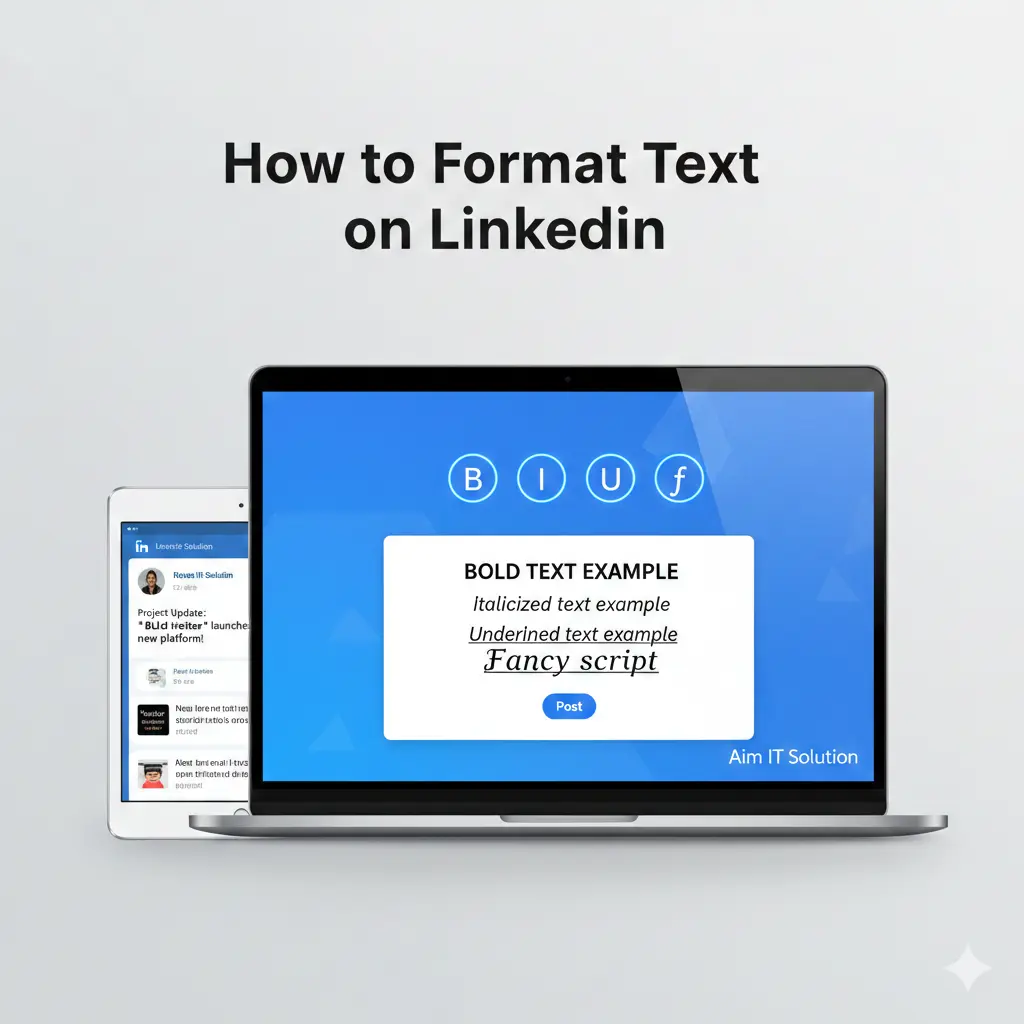
LinkedIn doesn’t have a bold button, so you must use a linkedin bold text formatter tool.
Simple steps:
- Write your line in the tool.
- Choose the bold style.
- Copy the bold version.
- Paste it into your post.
Use bold to highlight:
- your main point
- a strong line
- a key message
Use bold sparingly. Heavy bold text distracts readers.
How to Italicize Text on LinkedIn
LinkedIn also doesn’t support italics natively. You should use formatter tool to italicize text on linkedin
Use italics for:
- a short note
- a small quote
- a side thought
Keep italics light. Too much reduces clarity.
How to Add Fancy Fonts
Fancy fonts help certain lines stand out, but they can reduce readability. Some Unicode fonts appear differently on mobile, so use them carefully.
Use fancy fonts for:
- a heading
- a highlight
- a call-to-action
Avoid fancy fonts in long paragraphs. They break the reading flow.
How to Use a LinkedIn Text Formatter Tool
A LinkedIn Text Formatter Tool adds extra text styles that the built-in editor does not offer directly. It creates bold text and italics. It also adds simple style variations. The steps for using a linkedin text formatter tool given below.
Step-by-Step Guide
- Open the formatter tool.
The linkedin text generator tool shows a text box for writing. - Type your text in the box.
Write the line exactly as you want it to appear. - Select a style.
Choose bold, italics, or a basic font variation. - Copy the formatted text.
The tool converts the text into the selected style. - Paste the text on LinkedIn.
The style usually appears the same in posts, comments, or messages.
Best Practices
- Use styles with purpose.
Clear text helps readers understand your point. - Keep bold lines short.
Short bold phrases draw attention without breaking flow. - Use italics for soft notes.
Italics work well for brief thoughts or small quotes. - Check the text on mobile.
Some styled characters look different on smaller screens. - Avoid heavy styling.
Simple formatting keeps the post clean and easy to read.
Fixing LinkedIn Spacing Issues
LinkedIn sometimes changes spacing after you paste or publish a post. This can make the text look tight or uneven. Clear spacing helps readers follow your message, so it’s useful to fix these small issues.
Line Breaks Not Working
LinkedIn sometimes removes a line break when you paste text.
How to fix it:
- Press Enter twice to create a clear gap.
- Paste your text in smaller parts.
- Check the spacing before you publish.
- Add a small symbol on an empty line if LinkedIn still removes the gap. This forces the space to stay.
LinkedIn Removing Spaces
LinkedIn sometimes closes gaps between short paragraphs, especially when the text includes bold or italic styles.
Simple fixes:
- Write your plain text first, then add formatted parts.
- Avoid pasting large blocks.
- Add one extra space after short sections.
- Check the post on both mobile and desktop.
This helps the post hold the same spacing across devices.
LinkedIn Formatting Tips for Higher Engagement
Good formatting helps readers understand the post easily. Formatting the post to create a clear structure that helps people read more of your content.
Use a Clear Hook
Readers scroll fast, so a strong first line helps them stop.
- Keep your hook short.
- State your point directly.
- Avoid long or confusing lines.
Simple lines usually work better.
Break Text Into Small Blocks
Large paragraphs can make readers skip parts of the post.
- Share one idea per block.
- Keep each block two or three lines.
- Add a small gap before the next point.
This makes the post easier to scan.
Highlight Key Points
Readers want quick takeaways.
- Use bold for one or two important lines.
- Use italics for soft notes or quotes.
- Avoid heavy styling.
Highlights should support the message, not distract from it.
Use Simple Language
Simple words help more people understand your message.
- Choose direct words.
- Avoid jargon.
- Keep sentences short.
Clear writing reaches more readers.
Add a Clean Ending
A short closing line makes the post feel complete.
- Recap your point briefly.
- Invite feedback only if needed.
A simple ending keeps the structure balanced.
Common Formatting Mistakes to Avoid on LinkedIn
Clear formatting makes the text easier to read. Small changes improve how readers understand your message. These are common mistakes people often make.
1. Long Paragraphs
Long paragraphs feel heavy. Readers often skip dense blocks.
Better approach:
- Keep lines short.
- Break ideas into small blocks.
- Add space between points.
Short sections make the message easier to grasp.
2. Overusing Bold or Italics
Too much styling hurts clarity.
Better approach:
- Use bold for one key line.
- Use italics for a small note.
- Avoid styling long parts of the post.
Light styling keeps the text clean.
3. Using Hard or Technical Words
Complicated words slow readers down.
Better approach:
- Use simple words.
- Avoid jargon.
- Keep your message direct.
Clear wording reaches a wider audience.
4. Adding Too Many Hashtags
Many hashtags make the post look busy.
Better approach:
- Use 3–5 hashtags.
- Place them at the end.
- Keep them out of the main text.
This keeps the layout clean.
5. No Space Between Ideas
Tight spacing makes the text hard to scan.
Better approach:
- Add breaks between ideas.
- Separate each point clearly.
- Guide the reader step by step.
Good spacing improves readability.
6. Weak Ending
A weak ending leaves the post open.
Better approach:
- Recap your point in one short line.
- Add a simple question if you want replies.
A clear ending gives the post a smooth finish.
How Formatting Affects Engagement on LinkedIn
Good formatting improves how people read and interact with posts. Small changes guide readers and make the message easier to understand. Using a LinkedIn Text Formatter Tool can help apply bold, italics, and clear font styles safely.
1. Clear Structure Keeps Readers Longer
Place the main point at the top.
Use short blocks for each idea.
Move smoothly from one idea to the next.
2. Clean Layout Supports Skim Reading
Group lines in short sections.
Highlight one key line with bold using a LinkedIn Text Formatter Tool.
This layout helps readers grasp the content quickly.
3. Proper Spacing Reduces Drop-Off
Add space between lines and paragraphs.
Separate each idea clearly.
Avoid packing too much text in one block.
4. Simple Language Builds Trust
Use plain words.
Explain ideas clearly.
Keep a steady tone.
Readers trust posts that feel natural.
5. Styled Text Guides Attention
Bold one strong point.
Italicize small notes or quotes.
Avoid fancy fonts in long sections.
Styled text helps highlight the message without distraction.
6. Strong Ending Encourages Action
End with a clear line.
Ask one simple question to invite comments.
Encourage readers to respond without pressure.
How to Use Emojis Correctly on LinkedIn
Emojis help make posts clear when used carefully. They support the message without distracting readers.
1. Highlight Key Points
Use one emoji to show an important line.
Place the emoji near the main idea.
Avoid many emojis in a row because they confuse readers.
2. Improve Layout
Add an emoji to separate ideas or break long text.
Small icons create visual breaks without crowding the post.
Check spacing on mobile and desktop to keep it consistent.
3. Show Tone Clearly
Choose emojis that match the content.
Neutral icons fit professional posts.
Do not use emojis that distract from the message.
4. Use Sparingly
Limit emojis to one or two per section.
Few emojis guide the reader and keep the post clean.
How to Use Call-to-Action Lines on LinkedIn
A call-to-action (CTA) guides readers to the next step. Clear CTAs improve engagement without pushing readers.
1. Give Clear Direction
A CTA shows the next step. Keep the line short. Write the action clearly. Use a LinkedIn Text Formatter Tool to highlight key words in your CTA. Avoid pressure or sales-heavy language.
2. Place CTA at the End
Readers look for direction after reading the post. Place the CTA in the last line. Connect it to the main point. Keep the tone natural. Highlight the CTA with bold text using the formatter tool for emphasis.
3. Encourage Small Actions
A good CTA invites small responses. Ask a question or request a quick comment. Keep the request simple. Use italics to emphasize optional steps without overwhelming the reader.
4. Align CTA with the Post
Match the CTA to the post’s topic. Avoid unrelated requests. Focus on one goal per post. Format the CTA clearly to make it stand out visually.
5. Keep CTA Simple
Write plain words. Avoid long sentences. Make the line easy to read. Use the LinkedIn Text Formatter Tool to make your CTA visually clear and readable.
Advanced Tips
Using Formatting in LinkedIn Articles
Articles work well when the layout feels steady. Keep each paragraph short. Add clear headings to guide the reader. Use bold only when it helps someone notice an important line. A LinkedIn Text Formatter Tool can help you keep headings and breaks consistent.
Formatting for LinkedIn Stories & Videos
Stories and videos move fast, so viewers read only a few words. Keep your text short and direct. Place clean lines on the screen and make sure the font size is readable on mobile. If you add text to a video, keep it bold enough to stay clear against the background.
A/B Testing Post Formatting for Engagement
Small tests show real patterns. Post two versions of the same idea—one with open spacing, one with a tighter layout. Compare the reach and interactions. This helps you see what your audience responds to based on actual results.
Examples of High-Performing LinkedIn Posts With Proper Formatting
Posts that perform well share a few habits:
– A direct first line
– Clear spacing
– Short sentences
– A simple closing line or CTA
These details help readers move through the post at a steady pace.
Case Studies Showing Engagement Gains Using LinkedIn Text Formatter Tool
Many users notice better results when the text becomes easier to read:
– More people stop to view the post
– Readers stay longer
– Comments increase when the message is clear
– Posts look more organized
Formatting does not change the idea. It only helps you present it in a cleaner way. A LinkedIn Text Formatter Tool makes this process simple and consistent.
Conclusion
Clear formatting helps people read your LinkedIn posts with less strain. Short lines and steady spacing keep the text neat and easy to follow. Small visual cues make the post look more organised.
Use bold for one main point, not for whole paragraphs. A LinkedIn Text Formatter Tool can add bold or italics when you need soft emphasis because LinkedIn’s editor does not include these options.
Try different layouts to see what fits your audience. Change the spacing, try a new opening line, or adjust the flow. Then check your reach, reactions, and comments to see which format works better.
Small improvements made over time help you shape a clean writing style. These changes often make your posts clearer and help more readers stay on the message.