
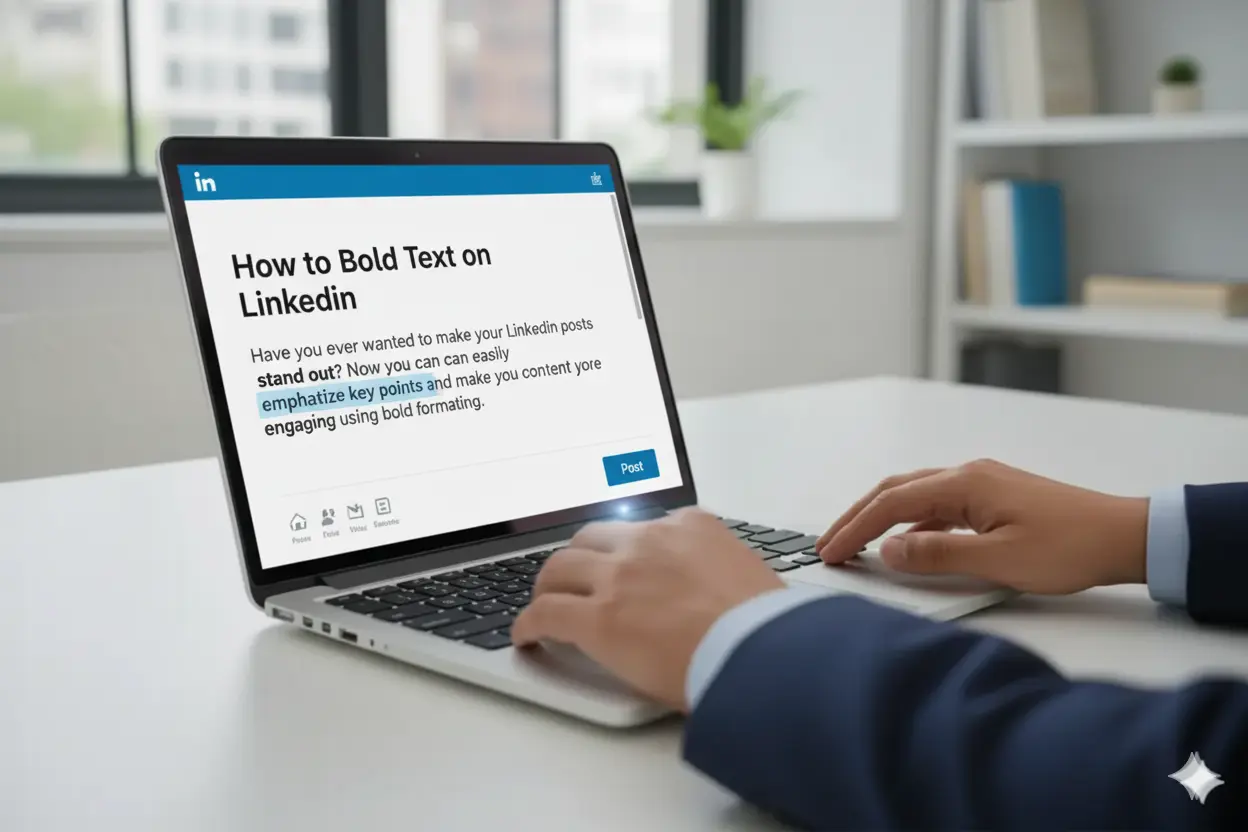
Formatting plays a big role on LinkedIn. Clear text helps readers stop and notice your post. Bold text highlights your main point. It makes your post easy to scan and improves engagement. But LinkedIn does not give a built-in bold option. Many creators still use bold text in posts, comments, and articles. They use simple tools that convert normal text into Unicode bold fonts.
This guide explains how to bold text on LinkedIn in a safe and clean way. It also explains how to format your posts so they look professional. Every method works on mobile and desktop. Use professionals favourite tool LinkedIn text formatter free.
You can copy the bold text and paste it into any part of LinkedIn. This guide helps you use bold text in a clean and safe way. It shows you simple steps that work on mobile and desktop. By the end, you learn how to make your text stand out and get more views on LinkedIn.
Why Bold Text Works on LinkedIn
Bold text helps your post stand out in a fast feed. People scroll quickly, so your post needs a clear point that the eye can catch. Bold text marks the important lines and helps the reader follow your message.
Bold text also adds clarity. It breaks long text into smaller parts and shows the main idea. The reader understands the point without extra effort. Clear text often gets better attention because it is easy to read.
Many LinkedIn creators use bold text for short headers, hooks, and simple calls to action. They use it to show the key message at the start. When you use bold text in a neat way, your post looks more organised and easier to follow.
How to Bold Text on LinkedIn Using Unicode
LinkedIn does not offer bold text by default. You can still add bold text by using Unicode fonts. Unicode creates characters that show in a bold style. LinkedIn reads these characters like normal text.
You can type your line in a Unicode bold tool. The tool converts your text into a bold version.
You then copy the bold text and paste it into your LinkedIn post, article, or comment. The bold style stays the same after you publish it.
Unicode bold works on most devices. It shows the text in a clean way and does not affect how your post loads. Use bold text only for key lines because too much bold text can make the post hard to read.
Steps to Bold Text on LinkedIn (Simple Method)
You can bold text on LinkedIn with a simple process. You do not need any setup. These are the steps most creators follow:
Step 1: Open a Unicode bold text tool.
This tool changes your text into bold characters.
Step 2: Type your text in the box.
The tool shows the bold version below it.
Step 3: Copy the bold text.
The bold style stays the same when you copy it.
Step 4: Paste it into your LinkedIn post, article, or comment.
The text shows in bold when you publish it.
Step 5: Read your post once.
Check if the bold lines support your message. Use bold text only for key parts.
This method works on most devices. Many people use bold text for the hook, a short headline, or one key point they want readers to notice.
How to Bold Text in LinkedIn Articles
LinkedIn articles give you more formatting options than normal posts. You can bold text inside the article editor without using another tool.
Open the article editor and type your text. Select the line you want to highlight. A small toolbar appears above the text. Click the bold icon. The selected text changes to bold.
Use bold text for short headers and key points. Keep the bold lines brief so the article stays easy to read. Clear formatting helps the reader follow your message without effort.
How to Bold Text in LinkedIn Comments (Human Version)
LinkedIn comments do not offer a bold option. You can still add bold text by using the same Unicode method you use for posts.
Type your text in a Unicode bold tool. Copy the bold version. Paste it into the LinkedIn comment box. The text shows in bold when you publish the comment.
Use bold text in comments only when it adds value. A short bold line can highlight your main point. It can also help your comment stand out in a long thread. Keep it simple. One bold line is usually enough.
How to Bold Text Without Using Any Tool
You can add strong text to LinkedIn without a generator, but the options are limited. LinkedIn articles allow direct bold formatting. LinkedIn posts and comments do not.
If you want to avoid tools, you can still make your text look clear. You can use short lines. You can use extra spacing. You can also use all caps for one word, but use it rarely. Simple spacing and clear structure can make your message easy to read even without bold text.
This method does not create true bold text, but it still helps your post look organised. When your message is short and direct, the reader understands it without effort.
LinkedIn Text Formatting Tips
Good formatting makes your message easy to read. You do not need complex tricks. Small changes can make your post clear.
Keep your lines short. Short lines help people read your point without effort. Use simple breaks between ideas so the reader can follow the flow.
Highlight only the lines that matter. Too much bold text makes the post look busy. One or two bold lines are enough.
Use clean spacing. Add a line break before your main point. Add another line break before your call to action. This helps the reader move through the post in a steady way.
End with a clear message. A simple close works better than a long one. Clean formatting makes your post easy to read and keeps the focus on your words.
Common Mistakes to Avoid
Many people use too much bold text on LinkedIn. This can make the post hard to read. Use bold text only when it adds clarity. One bold line is enough for most posts.
Some users bold full paragraphs. This reduces readability. Keep your bold parts short. Focus on one clear point at a time.
Another common mistake is using bold text to cover unclear writing. Bold text can highlight a point, but it cannot fix poor structure. Write your main idea first. Then use bold text to support it.
Also avoid mixing too many styles. When you combine bold text, caps, and symbols, the post looks messy. Simple formatting keeps your message clear.
Final Thoughts
Bold text guides the reader on LinkedIn. It highlights the main line and helps people scan your post. You can use a Unicode tool for bold text in posts and comments. You can also use the built-in option inside LinkedIn articles.
Good formatting is more than bold text. Clear spacing, short lines, and a direct message keep the reader with you. Use bold text only when it strengthens the point. When your post reads clean and simple, people stay on the page and engage with it.
FAQs
Can you bold text directly on LinkedIn?
LinkedIn posts and comments do not offer a bold option. You can use Unicode bold text to add styled characters. LinkedIn articles support direct bold formatting.
Is Unicode safe for LinkedIn posts?
Yes. Unicode characters are accepted by LinkedIn. They load normally and do not hurt reach or visibility.
Will bold text increase my engagement on LinkedIn?
Bold text can highlight key points. It improves readability and can help more people notice your message.